WordPress Shows a Critical Error – Causes and Fixes
What the 'There has been a critical error on this website' message means, the most common causes, and how to safely narrow down the problem.
When WordPress suddenly shows nothing but "There has been a critical error on this website", it's a stressful moment for most site owners — the site is down, the backend is often unreachable too, and the message itself gives no clue what's actually broken. The good news: in most cases, the cause can be narrowed down systematically without losing any data.
This article walks through how to approach it, which causes are most common, and when it's worth handing the troubleshooting over to a professional.
What the message actually means
Since WordPress 5.2, there's a built-in safeguard against fatal PHP errors ("fatal error protection"). Instead of a blank white screen with no information, WordPress now shows this generic critical-error message — to visitors, and (if email delivery works) to the admin by email. The message itself is deliberately vague, so no sensitive system information is exposed publicly. That also means: finding the actual cause requires looking in the right place.
Common causes
In practice, a critical error can almost always be traced back to one of these:
- A plugin update that isn't compatible with the current WordPress or PHP version
- A theme update or a faulty customization in
functions.php - A PHP version change on the hosting side that a plugin or theme wasn't ready for
- Exhausted memory (PHP memory limit) from memory-heavy plugins
- An incomplete update (e.g. from an interrupted file upload)
- A conflict between two plugins that load the same function or library differently
Before you change anything: check for a backup
Important: Before deleting files, deactivating plugins, or changing anything in the database, check whether a recent backup exists — ideally of both the files and the database. Without a backup, every further change becomes riskier, since mistakes can no longer be undone. If there's no backup, it's worth creating one manually through your hosting access (e.g. via phpMyAdmin and a file export) before doing anything else.
Enabling WordPress debug mode
Debug mode shows the actual error message instead of the generic one. To enable it, open the wp-config.php file in your installation's root directory (via FTP or your hosting panel's file manager) and adjust these lines:
define( 'WP_DEBUG', true );
define( 'WP_DEBUG_LOG', true );
define( 'WP_DEBUG_DISPLAY', false );
With this combination, the error is not shown publicly on the page (important for visitors), but is logged to wp-content/debug.log. There you'll usually find a specific line with a file name and line number pointing to the plugin or theme responsible.
Once you've found the cause, set WP_DEBUG and WP_DEBUG_LOG back to false — debug mode isn't meant to stay on permanently.
Checking plugins and theme systematically
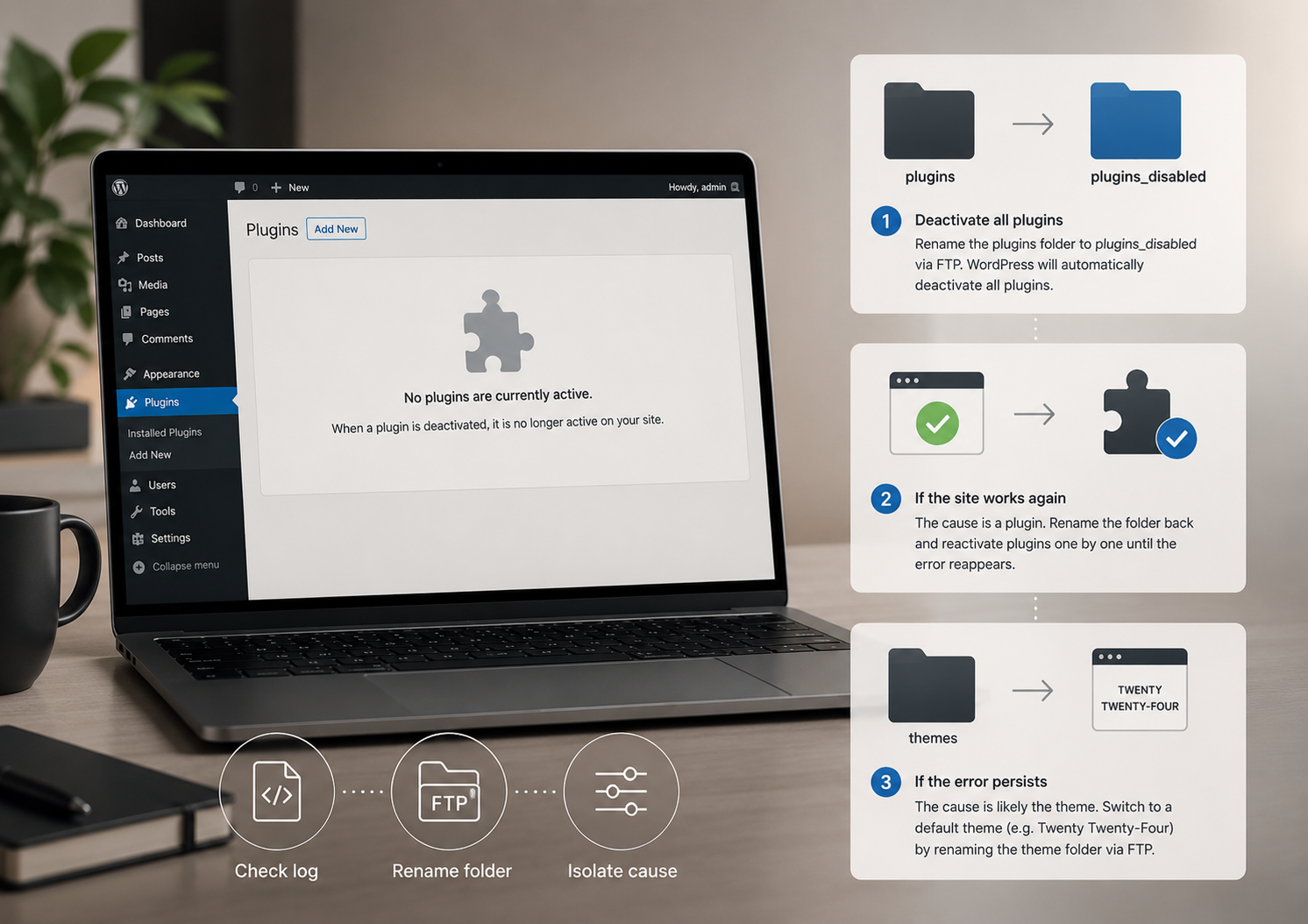
If the log doesn't point to a clear cause, a systematic process of elimination helps:
- Deactivate all plugins — either through the backend (if reachable) or via FTP, by renaming the
pluginsfolder toplugins_disabled. WordPress automatically deactivates all plugins when the folder is missing. - If the site is reachable again, the cause is a plugin. Rename the folder back and reactivate plugins one at a time until the error reappears.
- If the error persists even with all plugins off, the cause is likely the theme. Switch to a default WordPress theme (e.g. Twenty Twenty-Four) as a test — this can also be done via FTP by renaming the theme folder.
Checking hosting and the PHP version
Not every cause is a plugin or theme issue. A common, often-overlooked case: the host automatically updated the PHP version, and an older plugin or theme wasn't ready for it. Your hosting panel usually shows the current PHP version and, in many cases, lets you roll back to an older, compatible version — as a short-term bridge, not a permanent fix.
A PHP memory limit that's set too low can also trigger critical errors, especially on sites with many plugins or a heavy theme. The limit can often be adjusted in the hosting panel or via wp-config.php:
define( 'WP_MEMORY_LIMIT', '256M' );
When professional help makes sense
The steps above resolve most critical errors. But there are situations where outside support is worth it — for example when:
- there's no backup and the database itself may be affected,
- the error persists after deactivating all plugins and switching themes,
- the site is central to clients or patients and every minute of downtime costs business,
- or there simply isn't time to dig through logs and FTP access.
In these cases, it's usually faster and safer to have someone experienced with WordPress maintenance take over the troubleshooting rather than keep testing on your own and risk making the error worse.
Alsterform handles exactly these cases: WordPress error fixes, technical SEO fundamentals, and ongoing technical support, so outages like this become rarer — and get resolved faster when they do happen.
Find out more about ongoing support on the Digital Systems & Consulting page.
Need support with your website?
I help with WordPress fixes, technical SEO, automation and booking systems — pragmatic, without unnecessary overhead.
Get in touchGet in touch